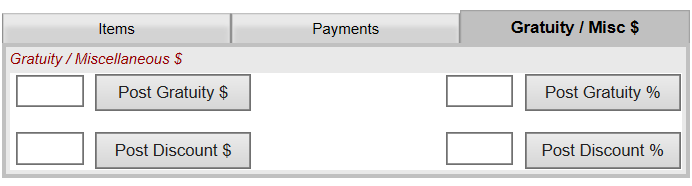
The Gratuity/Misc $ tab in the Restaurant Check screen allows you to apply a gratuity (tip) and/or discounts to the POS check. Use this tab to add an automatic gratuity and/or discount to the check, in either currency amount or as a percentage of the check. Any non-credit card payment where the gratuity needs to be recorded, the gratuity should be posted from the "Gratuity/Misc $" tab (ideally before the final payment). The gratuity field on the Payment tab is only used with credit card payments. In all other cases the Gratuity/Misc $ tab should be used. The buttons in this section (the Post Gratuity / Post Discount buttons) RATHER than the Post button on the Sale screen should be used for posting gratuities or discounts. These can be applied either as straight currency amounts (left) or as a percentage of the check (right) for both discounts and gratuities. This tab is also particularly useful for calculating the gratuity owed by large parties that incur a stated percentage (18%, 20%) - rather than doing the math yourself. If the restaurant has a policy of adding an automatic gratuity (for example to tables of 6 or more), use this tab to post the additional charge to the check before printing it for payment.
Note: Items can be set up in configuration to not allow a discount. The amount discounted will only apply to those items that allow discounts.
All food/Retail items on a check should be selected and voided when necessary, but Payments, Gratuity, and Discounts must all be "reversed" using a negative number regardless of how the amount shows on a check. Gratuity adjustments can only be done from the Gratuity/Misc $ tab.
NOTE: It is not uncommon for customers to simply write a Total amount to charge on their check, or to add the tip amount incorrectly. Regardless of which applies, the number entered by the customer in the Total space of the printed check is the amount that must be charged. YOU must ensure that the numbers are correct. Because of this, for gratuities in particular, whether you apply them before or after printing the check for payment depends on the situation - if the customer has added a tip to their payment, you could apply that amount in this tab after receiving payment from the customer, creating a zero balance for the check and no mistakes in posting amounts. For this reason, you may want to make a habit of applying customer-added gratuity to the check after printing the check. This ensures that you do not attempt to apply a gratuity to the check that does not add up to the total payment authorized by the customer.
Note: For posting gratuity on a CREDIT CARD payment, it is recommended that you use the Gratuity field on the Payment tab - it is not wrong to use the Gratuity/Misc $ tab for gratuities on a Credit Card Payment, and you will need to occasionally, but it does add extra steps that are not necessary for many credit card transactions, as long as you post the credit card payment as an AUTHORIZATION, rather than settling the payment immediately. (If the initial payment was settled immediately instead of posting as an authorization, the Gratuity field is no longer available since the payment was settled, therefore you will then need to post any gratuity from the Gratuity/Misc $ tab).
 To add a Gratuity or Discount to a POS check using the Gratuity/Misc $ tab:
First, choose an open check:
There are multiple ways to access an open check to modify it - these are each done from the Point of Sale (POS) Restaurant Log in page section of the Point of Sale (POS) Menu and all will take you to the Restaurant Check screen:
There is a button next to Table for Checks that will list all the table checks that are open.

Note: Any time you are on the restaurant start page you will need to enter your Server Quick ID button before you can do anything else.
Click the Gratuity/Misc $ tab to activate it.
Each of the (4) boxes on the tab has its own "Post" button associated with it. This allows you to enter the gratuity amount or percentage or the discount amount or percentage and post each separately to the check.
What you do next depends on the situation you are applying.
If you must apply a coupon for the meal, or an applicable discount (for example., AARP, hotel guest VIP club), enter the amount or percentage into the appropriate Discount text box and click the associated Post Discount button to apply it to the check.
If you must apply an automatic gratuity to the check, enter either the amount or percentage into the appropriate Gratuity text box and click the associated Post Gratuity button to apply it to the check.
Applying non-automatic Gratuity (non credit card) to a check:
If the check has been paid with cash (or other type of payment than a credit card) and a gratuity left, you should first use the Payment tab to calculate the gratuity amount.
Enter the total amount paid into either the Amount Tendered field to automatically calculate the Change Due amount. (This amount is the gratuity amount).
1.png)
THEN enter the Change Due amount shown into the Gratuity/Misc $ tab as the Gratuity amount and click Post Gratuity.
2.png)
NOW return to the Payment tab. You will see that the values have changed in the fields to reflect the addition of the gratuity. Enter the tendered amount once more and click post to apply the full payment amount.
5.png)
This should render a zero balance on the check, with an entry for the gratuity tendered.
4.png)
Note: IF you can calculate the gratuity amount from the amount tendered without needing it calculating for you (as change due), you may skip the initial payment tab step and add the gratuity amount directly. Be sure you can calculate it correctly!
If the customer did not use cash and instead for example charged to their room, before posting the payment you would use the Gratuity/Misc $ tab to enter the gratuity amount written on the payment receipt and click Post Gratuity. Click Post once the payment type and associated information is entered on the Payment tab. (This applies the payment to the check). Again, be sure that the totals (payment and gratuity) are correct.
Note: If the customer has added a tip to their payment, YOU must ensure that the amount is correct. The number entered by the customer in the Total space of the printed check is the amount that must be charged. You may wish to apply the gratuity amount in the Gratuity/Misc $ tab after posting, creating a zero balance for the check and no mistakes in posting amounts. This ensures that you do not attempt to apply a gratuity to the check that does not add up to the total payment authorized by the customer.
6.png)
To add a Gratuity to a POS check when a Credit Card is used for payment:
In general, when a credit card is used to make a payment, the Payment tab should be used rather than the Gratuity/Misc $ tab to add the gratuity amount. In most cases, the payment is posted to the credit card firstly as an AUTHORIZATION, which the guest then reviews, signs and enters a gratuity amount. This gratuity amount is then entered into the gratuity field on the Payment tab, and the payment is then SETTLED immediately by clicking the Post button. This will post the Gratuity and the final payment (including gratuity) in one action to the credit card, all without using the Gratuity/Misc $ tab.
(Step wise, you will post the authorization, enter the gratuity, then post the final payment).
Only if the initial payment was settled immediately instead of posting as an authorization will you use the Gratuity/Misc $ tab - in this case, the Gratuity field on the Payment tab is no longer available since the payment was settled, so you must post gratuity from the "Gratuity/Misc$" tab and then post a second payment, settled immediately, to cover that gratuity amount. .
Example: For a typical restaurant style payment procedure of authorization followed by settlement - this begins after the guest is presented a check (Print Receipt) and gives their CREDIT CARD for payment. In this case, the Payment tab rather than the Gratuity/Misc $ tab is used.
The initial payment is posted, whether for the total due or a partial payment. Most importantly the "Settle immediately to Credit Card" box should be unchecked (this should happen automatically).
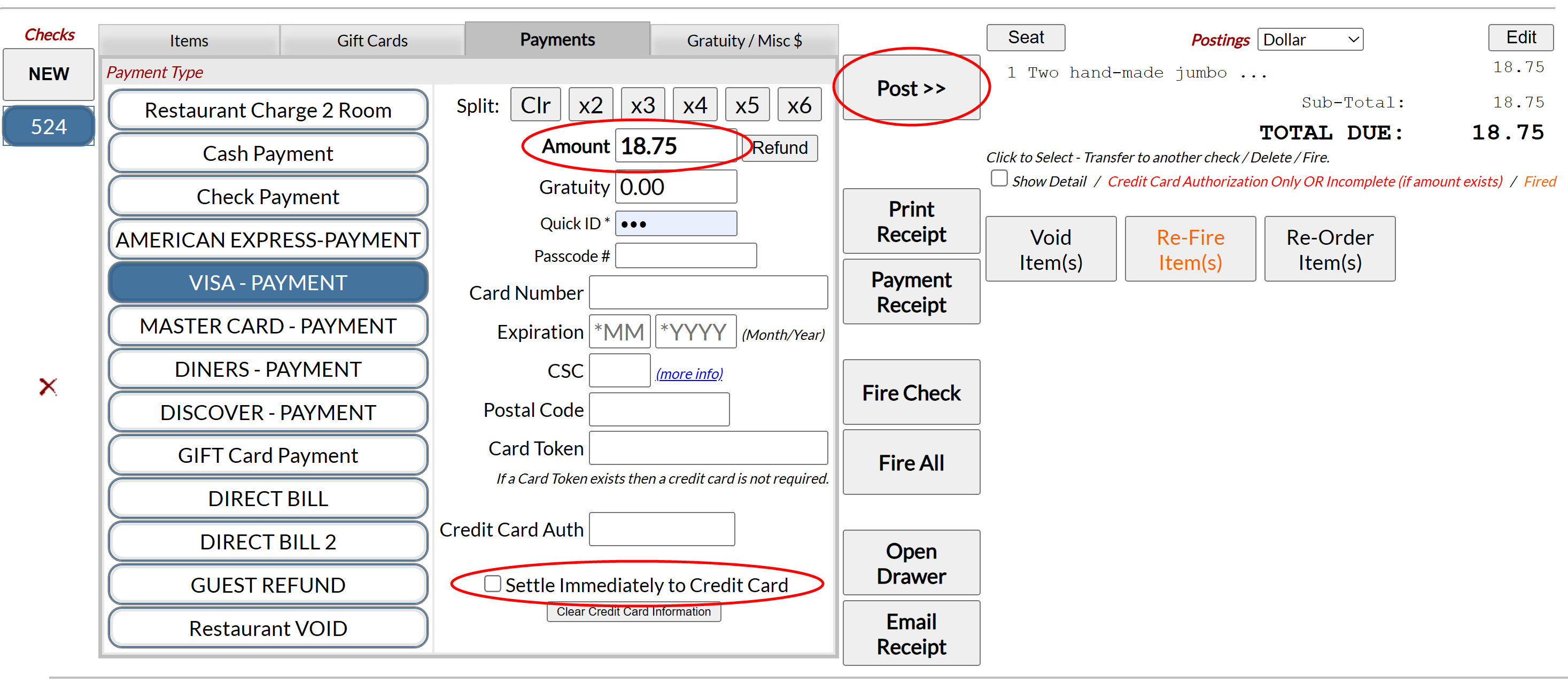
This will post as an Authorization which will display in red and will not reduce the total due.
.png)
The Guest is now presented with the Payment receipt where they will sign and enter gratuity. Back at the terminal you can see that the Amount due should be filled in and the "Settle Immediately..." box should now be checked (you do not need to touch these in most cases).
Note: If necessary you can select the specific authorization by clicking on it (used mostly in the case of multiple cards on 1 check).
Below the Amount field you can enter the Gratuity amount indicated on the check.
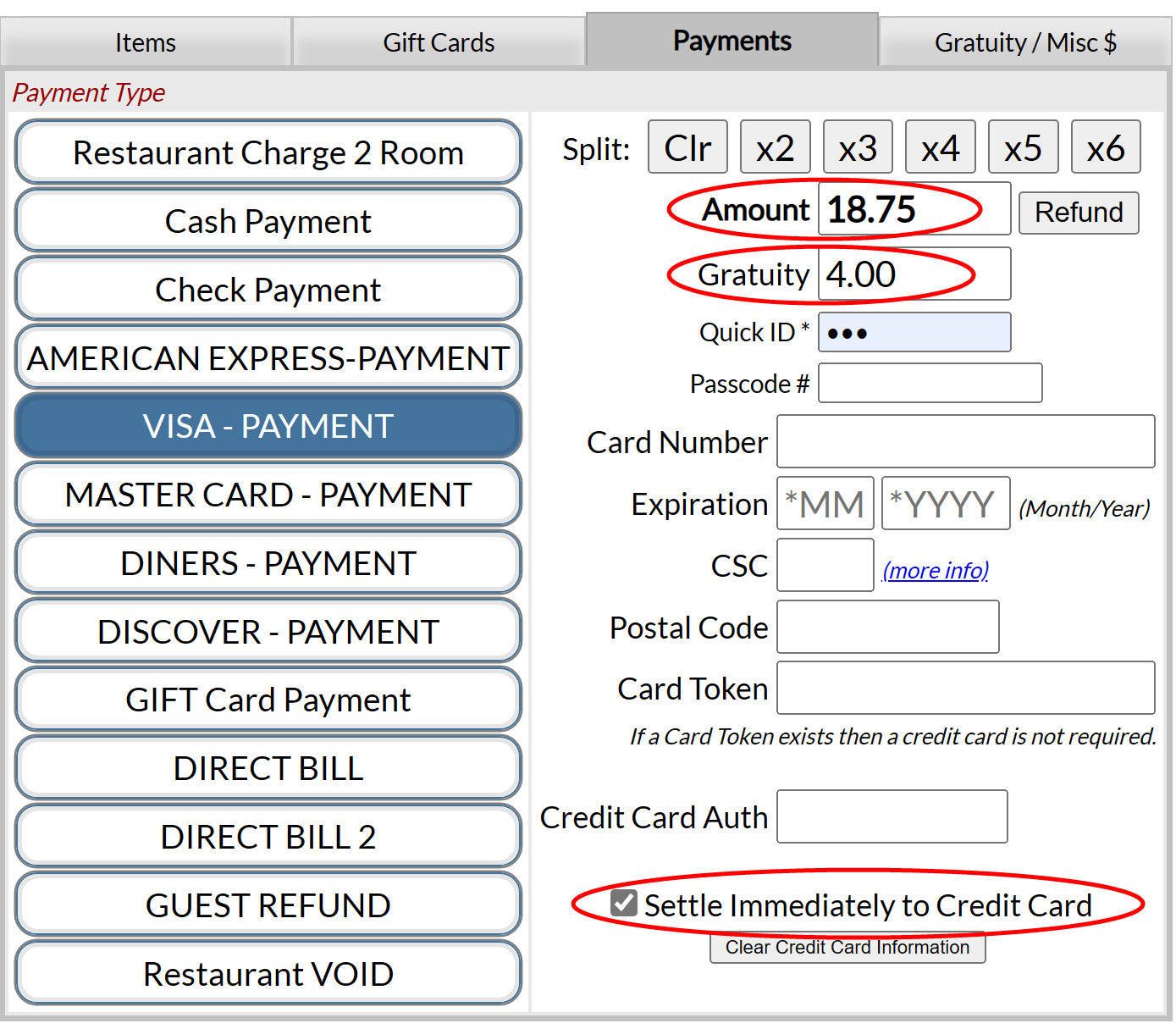
Once the gratuity has been entered, click "Post". This will post the Gratuity and the final payment (authorized amount AND gratuity) in one action which should bring your check to a total due 0.00 balance.
1.png)
To remove a Gratuity or Discount:
Gratuity adjustments can only be done from the Gratuity/Misc $ tab, regardless of where they were added.
To REMOVE a discount or a gratuity added to the check (because, for example, the guest tried to use an expired coupon, or changes their mind and wishes to leave the tip separately, or the tip was inadvertently added twice), is simple. The amount entered as the discount or gratuity should be re-entered, but with a NEGATIVE, then posted to the check once more. (Gratuities and Discounts must all be "reversed" using a negative number regardless of how the amount shows on a check).
7.png)
Note: It is recommended that reversing a gratuity or discount posted originally in percentage be done by using the flat amount ($) as a negative value on the Gratuity/Misc $ tab, to ensure that the amount removed from the check is the same as was posted.
This will post the amount as a negative, therefore removing it from the total posting amount owed. The two postings (positive and negative) will however remain listed on the postings list, showing that this was done, so it is better to avoid having to do this if possible.
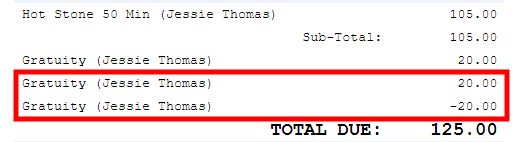
Note: If payment has already been made, you will need to reverse the payment amount that relates to the gratuity amount. Again, this is simple; using the Payment tab, the amount to be refunded should be re-entered, with a NEGATIVE, before posting to the check.
.png)
Date Updated May 27, 2026